The settings panel also allows access to configure the Alarm feature.
DCM can set custom alarms and send them to key staff via SMS.
A brief summary of the settings is given below, but alarms are covered in more detail later in this manual.
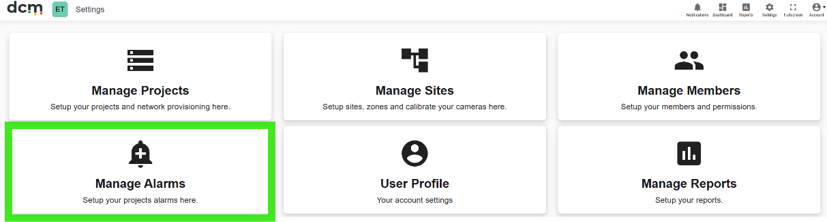
It can be accessed via the Settings (gear) icon at the top right, and choosing “Manage Alarms” from the Settings panel (Note that depending on user type and configuration, not all options will be available).
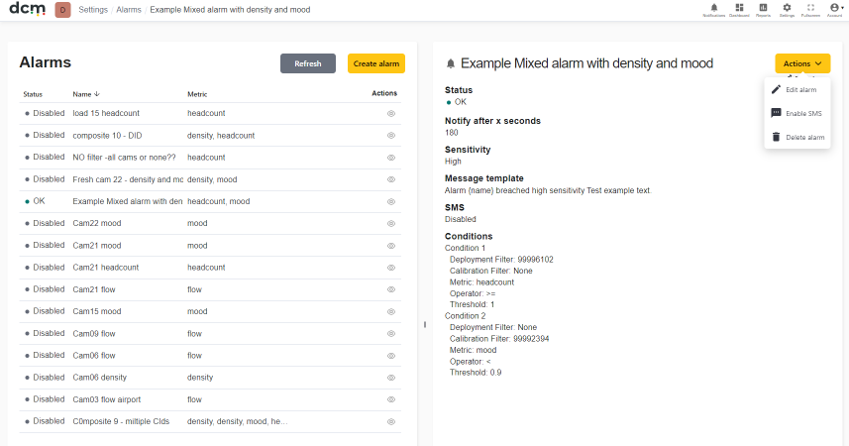
Below is the main setup screen for all Alarm functions.
Viewing an alarm will summarise its current config, and whether or not the Alarm is currently triggered. Selecting the “Create Alarm” button or clicking the ‘eye’ icon next to an existing alarm on the left panel and then selecting the “Edit Alarm” action will open the Alarm create or edit screen as below.
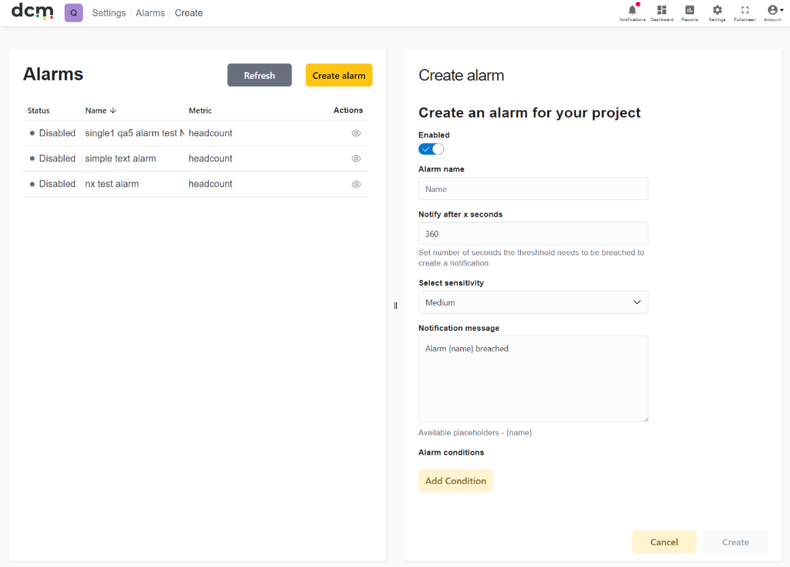
A given alarm can be created for all cameras, or a single camera selected from a dropdown filter list. Alarms trigger separately to the Risk settings that drive Zone colours on the dashboard.
Both risk thresholds and Alarms can be defined using a mix of one or all of the main metrics of Density, Flow and Mood. Multiple alarms, be created for the same camera, using different triggers. Details of Alarm creation is covered in a later section.
The notification message can be customised as can the SMS recipient lists.
The detail of how Alarms are created, displayed and managed on the Dashboard itself, or via SMS messages, is covered in a later section.