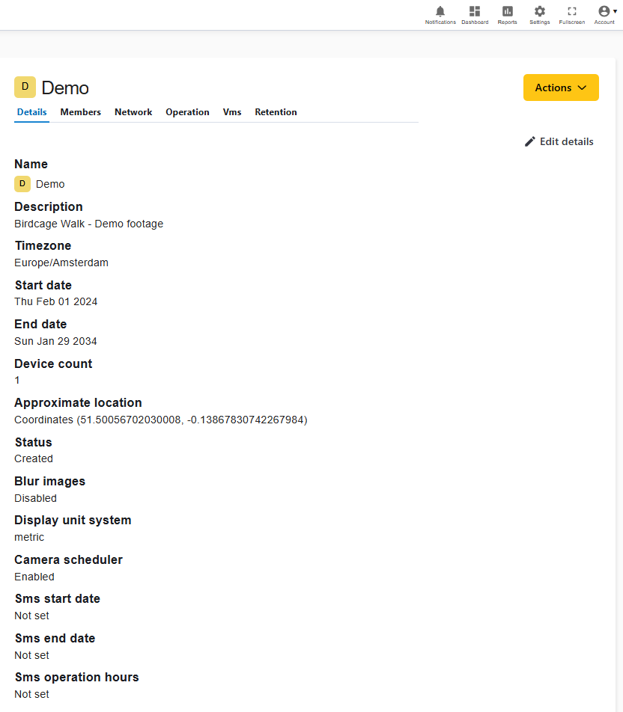
Once created, existing projects can be edited from the same Projects page. The above details are all that is needed for creation, but reviewing the other available options may be beneficial.
Once created as above, your new project will be added to the list of projects your user has access to on the left panel of the Projects page. Clicking on the “eye’ icon next to a project will display its details, and
Project setup page also contains some additional optional settings that will apply to all cameras and zones within that project.
Other Project wide optional settings
Image Blur
As an additional privacy protection, the sample images shown for all cameras within the project can be blurred before display. Default is off.
Metric or imperial Units
As mentioned previously, this toggle will switch between metric and Imperial/US units, project wide. Default is metric.
Camera Scheduler
This toggle provides a convenient place to quickly enable or disable the scheduler feature. Schedules can be set up in the ‘Operation’ tab of the project details and creation of schedules will be covered in detail in a later section.
Restricting SMS dates and times
Optionally, the date range and times that the Alarm system is allowed to send SMS alerts can be restricted here. This can be useful as a precaution to ensure any alarms don’t send alerts outside of event dates, business hours or at other inappropriate times, even if the camera drivers are still running and the alarm would otherwise trigger. Disabled by default.