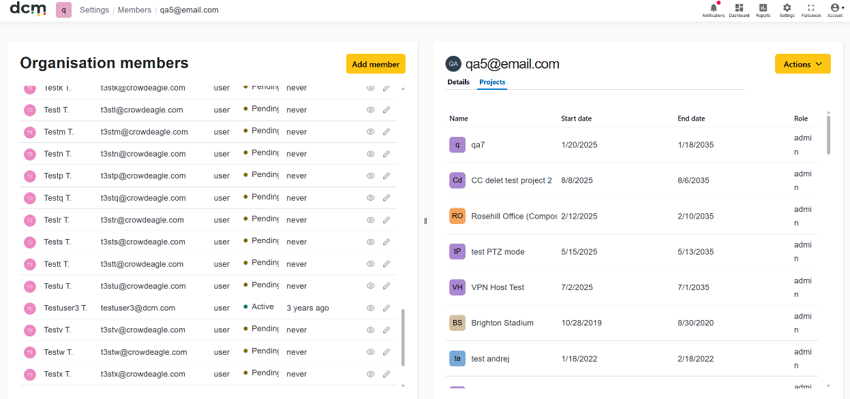

Site Manager, Site Admin and Organisation Admin can view all user profiles here.
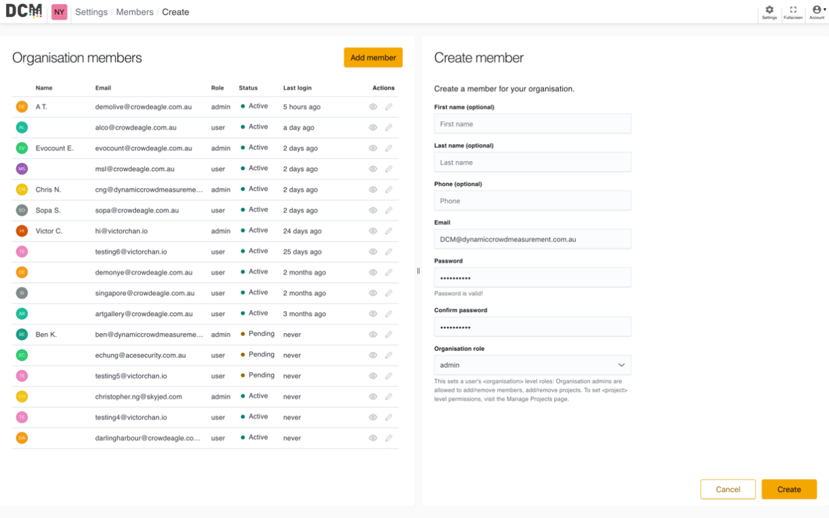
They can also add new users on this page.
Add member
Site Admin and Organisation Admin can invite new users by pressing ‘Add member’. Enter an email and a password and press create to send them an invitation email.
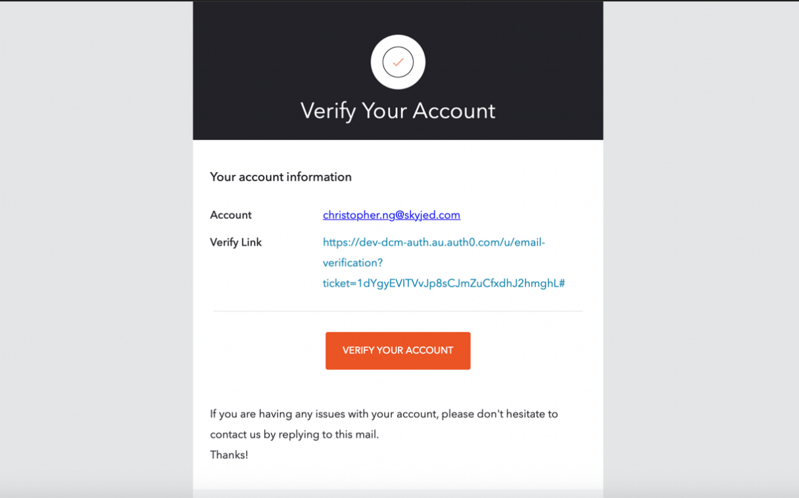
Confirmation Email
Once the new member receives a confirmation email and clicks ‘verify your account’. The new member will be directed to the dashboard and the account status will change from ‘pending’ to ‘active’.
Member details
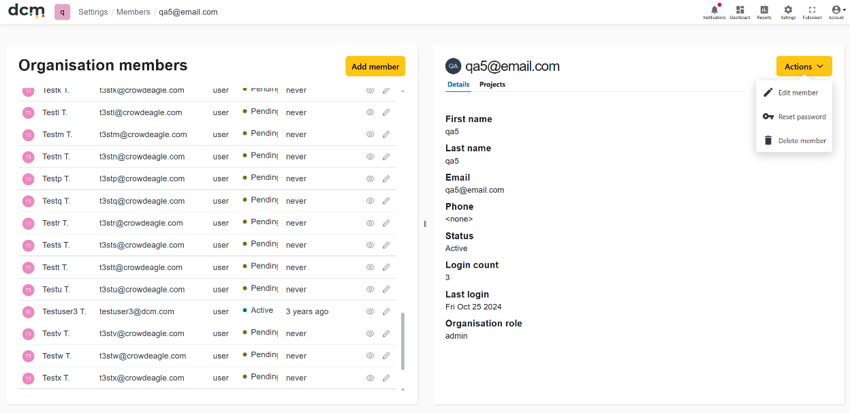
Admin level users can click on the “view” or “Edit” icons beside a user in the list on the left, to see and edit the details of existing users here. This page includes useful actions for project managers such as resetting a users password.
Member Projects
Admins can view what projects each user has access to and what role they have in each project here.
Unlike the member details tab, the projects tab information is read only.
Editing the users access to individual projects is done on a project by project basis, through the
Settings > “Manage Projects” option.