

Editing and Adding SMS notifications to an Alarm
Optionally, the user can set the system to notify a customisable list of people via their Mobile phones using SMS when an Alarm triggers. The SMS feature includes a managed recipient list.
This is done via the Edit Alarm function. Open a previously created Alarm by clicking on the “Eye” icon. Here existing Alarms can be modified, or a list of recipients created for SMS alerts.
Again – click on the ‘eye’ icon for the alarm you are interested in to open the alarm details panel. At the top right a dropdown list of actions is available.
Editing an existing Alarm
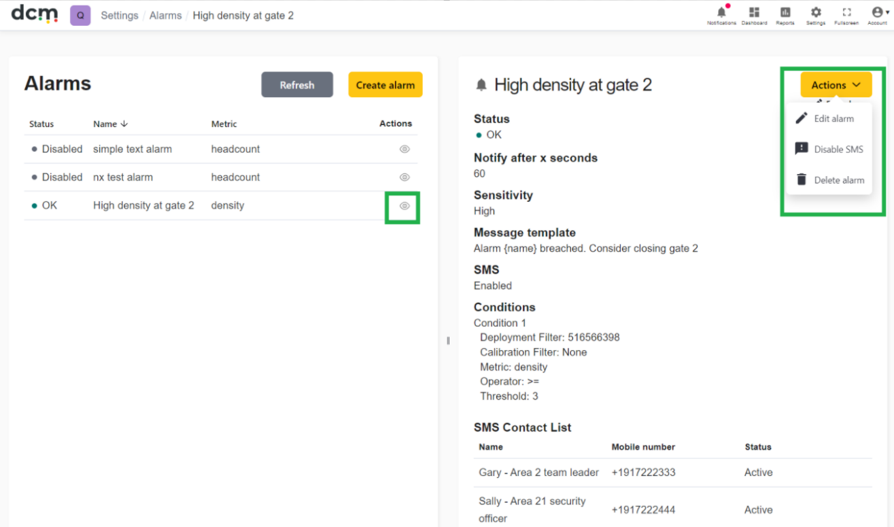
To add a contact list to an existing alarm, click the ‘eye icon’ to view that alarms details, and then select the edit action. This will open the ‘Edit Alarm’ panel.
At the bottom of the panel is an “Add Contact” option.
Click on that.
Each contact requires a free text name or label, and a phone number in international format.
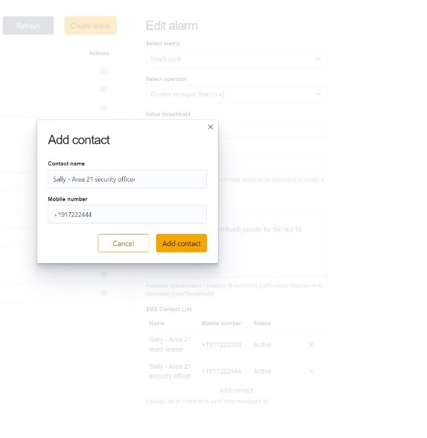
Once all contacts have been entered, press the ‘Edit’ button at the bottom right to save and return to the main screen. The alarm will look similar to above, with a visible list of contacts if SMS is enabled. The contact list is hidden if SMS is disabled.
The SMS service is currently active and available in Australia, the USA and EU. Contact DCM support to arrange SMS services in other areas.
If you made other changes to the other Alarm fields, you may need to save these by pressing the ‘Edit’ button at the bottom right corner.
Ensure the slider at the top is set to ‘enabled’ for the alarm to be active.
An active alarm will produce a popup warning on the dashboard if triggered, but will not send SMS alerts unless this is separately specifically also enabled.
Finally, you can enable the SMS messaging by choosing the “Enable SMS” option from the dropdown list shown previously. An alarm must have at least one contact added to the list to enable SMS.
Contact lists are only visible on the main screen when SMS is enabled.
When the alarm triggers, each user in the list will receive an SMS with identical text to the popup Alarm notification in the main Dashboard.
When first added to each Alarm list they appear on, recipients will be sent a notification SMS, and be given the option to opt out of receiving notifications from DCM for that alarm. If they choose this option, their status will change to ‘Opted Out’ in the SMS contact list, and they will no longer receive messages for that alarm until they opt back in.