
🔔 The Alerts Panel
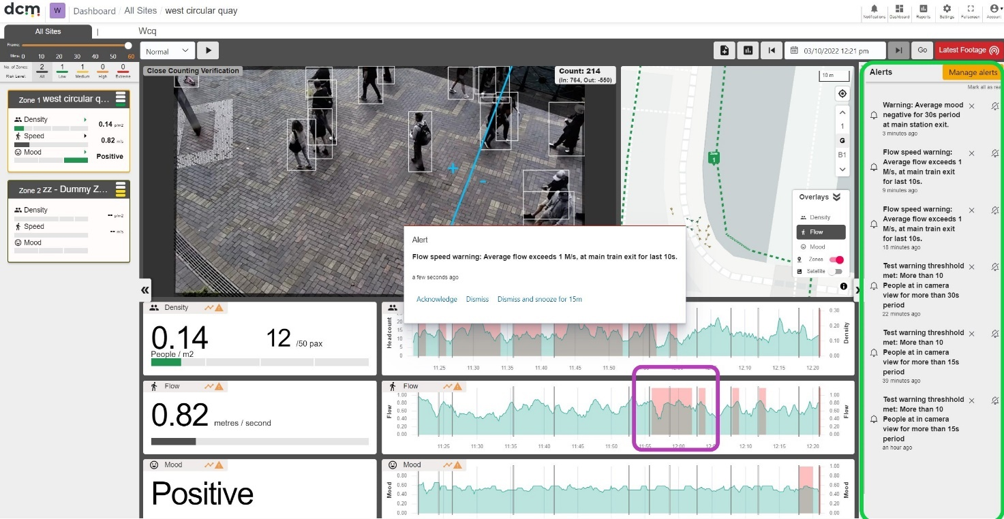
Acknowledged alarms are added to a list that can be viewed via a pull out panel on the right hand side of the dashboard called the “Alerts Panel”. This can serve as a “To Do” list of current issues that should be investigated and actioned for a live event.
If an Alarm is triggered when no users are connected to the project, it is automatically added to this list as an unread item. The main Dashboard has an Alerts List. This list can be used as a ‘To Do’ list for staff in a control center, and can record all Alerts, that triggered for any camera in the project. It can be hidden when not in use.
You can set filters to make the alarm apply to a specific camera, or all cameras in a project.
You can also set a threshold for the amount of time the value is breached to minimise false alarms.
💬 Alarm Popups
Once triggered, alarms must be either acknowledged or dismissed by a user on the Dashboard. It is also possible to snooze a given alarm to quickly suppress an alarm that is triggering too frequently.
When an alarm triggers it will display as a popup message for all users in that project who are currently online. An alarm can be handled in three ways by choosing an option from this popup message.
|
Action |
Description |
|
|---|---|---|
|
1 |
Acknowledge |
Will close the popup, record the message as read, and add it to the Alerts list in the right panel of the main Dashboard. |
|
2 |
Dismiss |
Will also close the popup, but will not add the Alarm to the Alerts list. The Alarm is recorded as both read and dismissed in the Audit logs. |
|
3 |
Dismiss and Snooze |
This is the same as dismiss, but will additionally prevent the same alarm triggering for a fifteen minute period. |
The first active user to do any of these actions will remove the popup for all active users. If no users are active at the time of the Alert triggering, it will automatically be added to the Alerts list as an unread item. All actions are fully audited, and this audit trail can be retrieved via the API.
Below is an example of a triggering alarm, visible as a popup window, showing the three available options, acknowledge, dismiss or snooze.
The Alert panel is also shown (highlighted here in green). This shows a historical list of all alarms that have triggered for this zone and not dismissed. This can be used as a ‘To Do’ list for investigation during an event. It can also be hidden when not in use. Repeat triggers for the same alarm are stacked with a note similar to ‘this alarm has triggered X times in the last Y minutes’ added.
As well as triggering the Alarm popup, the period when a configured Alarm was breached, and continued to be breached is displayed in the graph relevant to the Alarm in red. An example is highlighted in the purple box in the below screenshot.