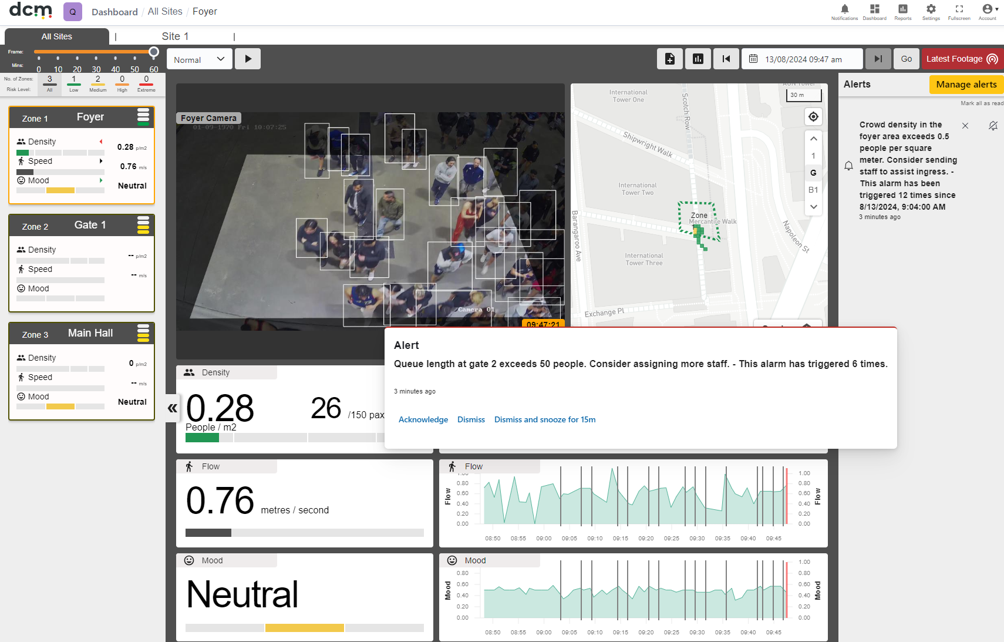
DCM allows the user to create customised Alarms, based on user defined parameters. When triggered, these alarms will draw the attention of the user with popup warnings on the DCM dashboard, and can also be configured to be sent via SMS to a defined list of individuals based on name, role or location criteria.
A default Alarm popup in the DCM dashboard
While the SMS messaging capability provides one method to deliver high priority alerts to staff not currently viewing any dashboard, some customers may wish to primarily use their existing VMS dashboard to monitor their venue, location or event.
With the API link in place, DCM alarms integrate more tightly into the VMS system and display with other alerts on the default VMS dashboard in a ‘single pane of glass’.
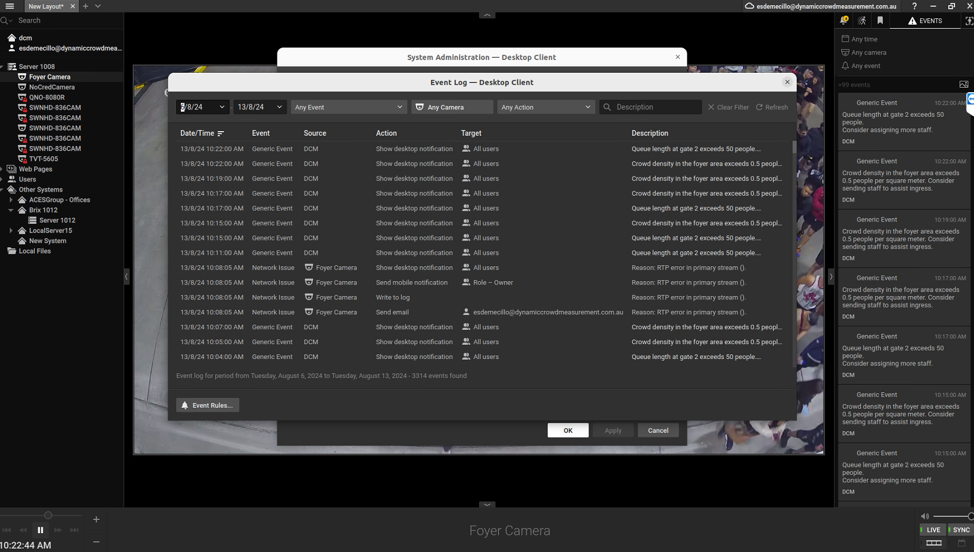
Alarms being fed from DCM into the main dashboard of an NX Witness VMS.
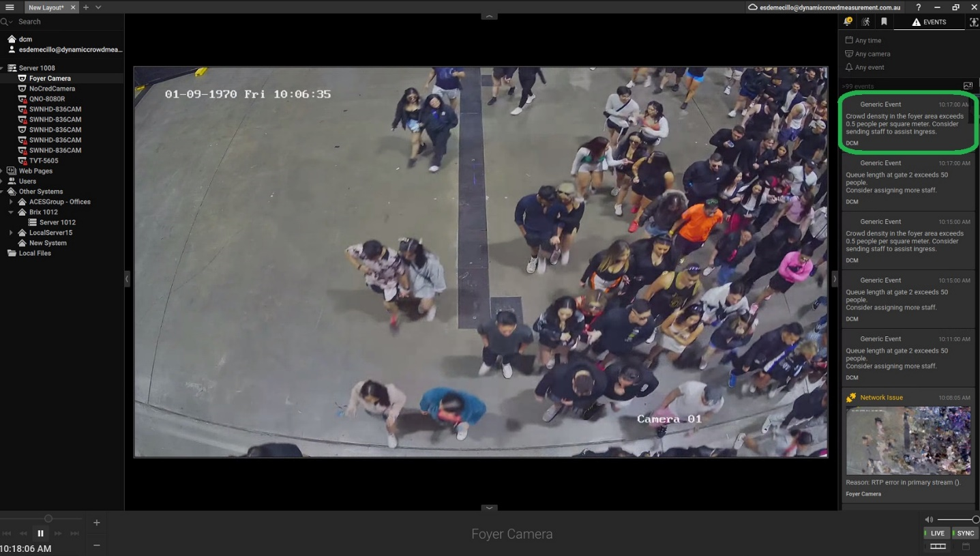
DCM Alarms are also automatically integrated into the standard event logs along with existing event types.
Setting up alarms
Creating an alarm using a camera imported from a VMS system still needs to be done using the DCM dashboard and follows the identical process as for any other alarm in DCM.
From the settings page choose “Manage Alarms”
Press the “Create Alarm” button and fill in desired details.
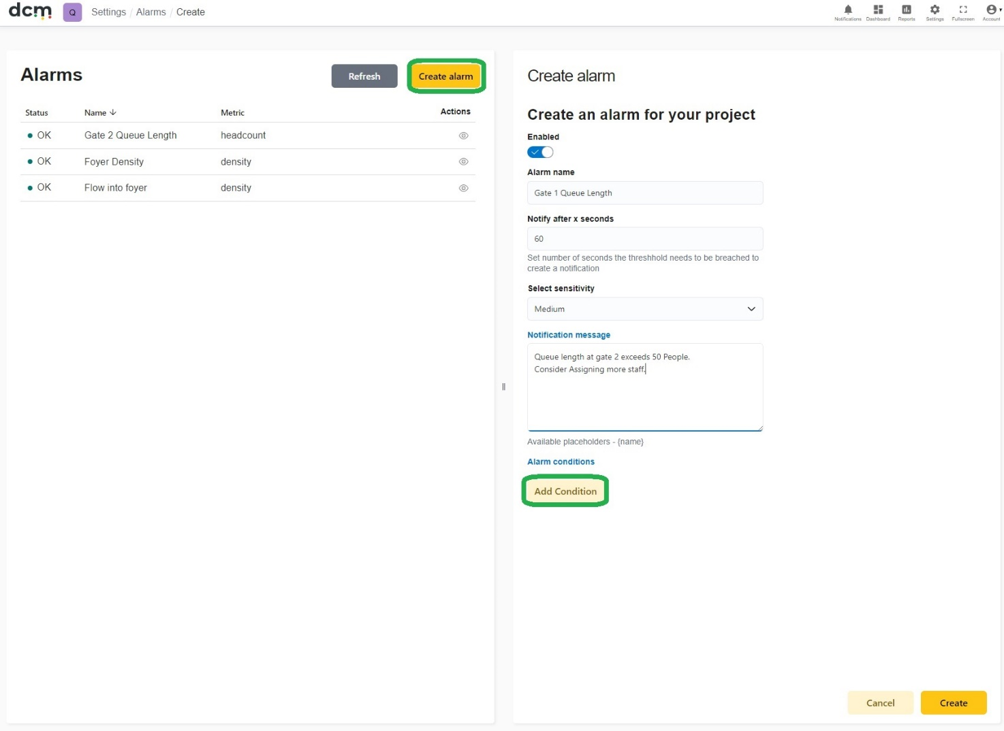
Full details on alarm options and creation cam be found in the main DCM manual in the section “Alarm Functions”.
Alarms can be created using any combination of Density, Flow and Mood. Alarms can be created for the same camera, using different triggers, or using criteria from multiple cameras just as in a default DCM configuration.
The list of cameras uses the name you entered for that camera in the deployment screen.
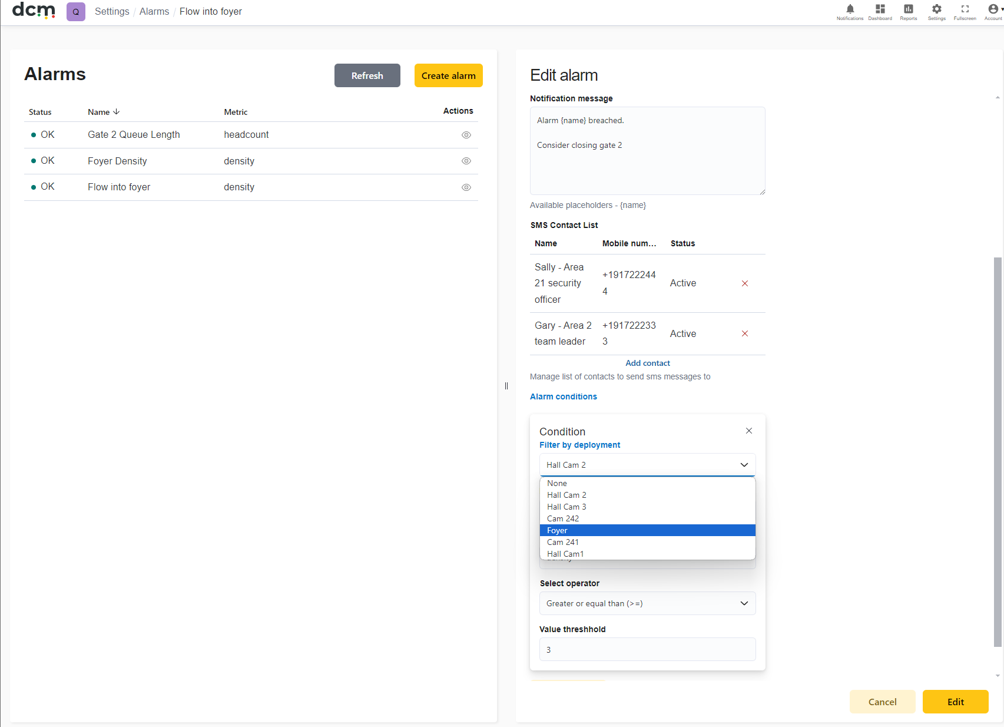
Behaviour is identical to alarms based on cameras from non VMS sources.
Once setup, the DCM dashboard does not need to be monitored as closely. If an alarm triggers while a user has the VMS dashboard open, but no user has the DCM dashboard open – it is displayed in the VMS without generating a popup in DCM.